Qwen-Image-Layered ComfyUI Workflow Usage Guide
Qwen-Image-Layered is an image layered editing model developed by Alibaba's Qwen team that can decompose images into multiple RGBA layers, with each layer independently editable without affecting other content.
Qwen-Image-Layered is an image layered editing generation model developed by Alibaba's Qwen team, based on the Qwen-Image model and released under the Apache 2.0 open-source license. This model can decompose images into multiple RGBA layers, with each layer independently editable without affecting other content in the image. This physical isolation approach makes image editing more precise and consistent.
Unlike traditional image editing methods, Qwen-Image-Layered achieves a true layered editing experience by decomposing images into multiple independent RGBA layers. Each layer contains complete color and transparency information, making layer composition more natural. This design allows users to precisely control different parts of an image without worrying about editing operations affecting other areas.
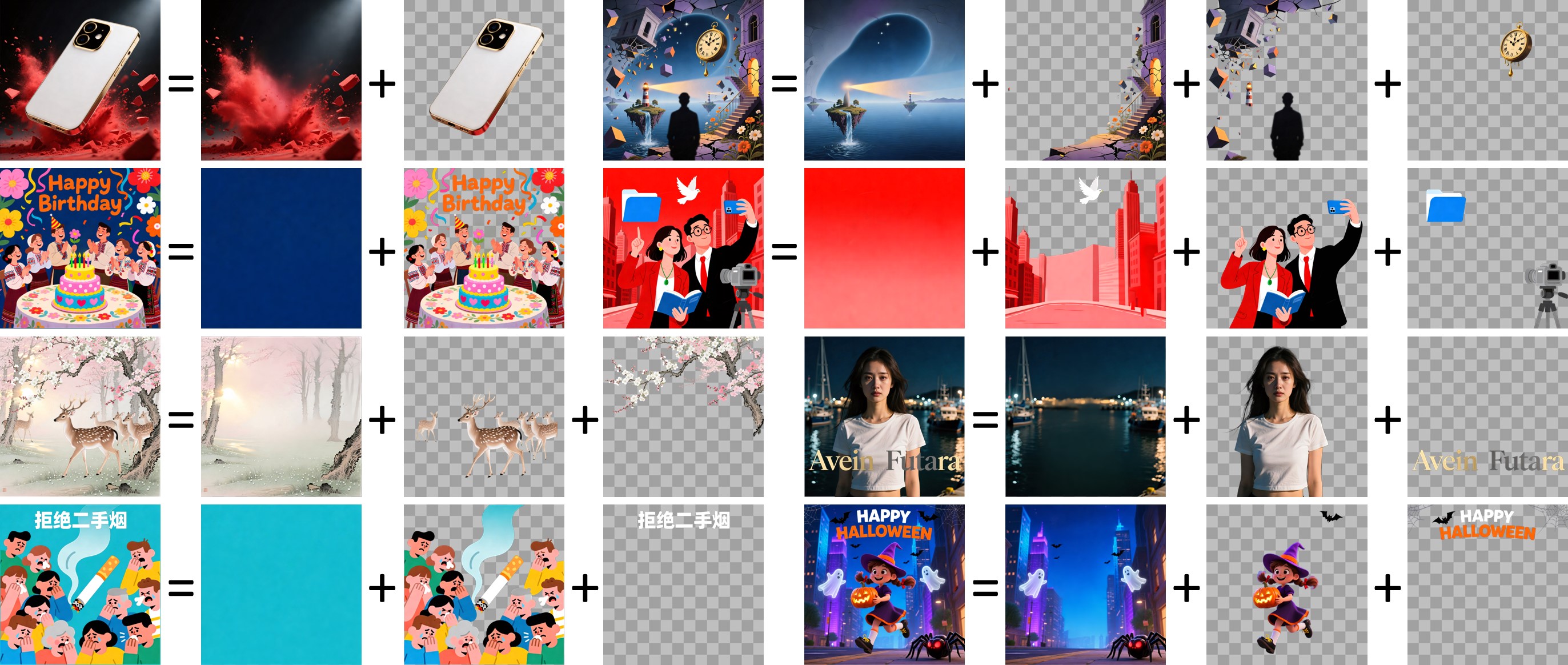
Core Features:
- Layer Decomposition Capability: Can decompose images into multiple independent RGBA layers, with each layer containing specific semantic or structural components such as foreground objects, background elements, text, etc.
- Independent Layer Editing: Supports operations like recoloring, content replacement, text modification, object deletion, resizing, and repositioning for each layer, with all operations affecting only the target layer
- Flexible Layer Count: No fixed limit on the number of layers; images can be decomposed into different numbers of layers (e.g., 3, 4, 8, or more) as needed
- Recursive Decomposition: Supports recursive decomposition, where any layer can be further decomposed into more sub-layers, providing greater flexibility for complex editing needs

Qwen-Image-Layered ComfyUI Native Workflow Guide
Qwen-Image-Layered has native support in ComfyUI, allowing users to directly use this model for image layered editing. No additional custom nodes need to be installed; simply update to the latest version of ComfyUI.
1. Workflow File
After updating ComfyUI, you can find the workflow file from the templates, or drag the workflow below into ComfyUI to load it
2. Model Download
All models can be found on Huggingface or ModelScope
text_encoders
diffusion_models
vae
Model Storage Location
📂 ComfyUI/
├── 📂 models/
│   ├── 📂 text_encoders/
│   │      └── qwen_2.5_vl_7b_fp8_scaled.safetensors
│   ├── 📂 diffusion_models/
│   │      └── qwen_image_layered_bf16.safetensors
│   └── 📂 vae/
│          └── qwen_image_layered_vae.safetensors
3. FP8 Version
By default, we use the bf16 version, which requires higher VRAM. If you have limited VRAM, you can use the fp8 version to reduce memory usage:
When using the fp8 version, you need to update the model path in the Load Diffusion model node within the Subgraph in the workflow to point to the fp8 version model file.
4. Workflow Settings
Sampler Settings
This model has relatively slow generation speed and long runtime. The original sampling settings recommend 50 steps with a CFG value of 4.0, which will at least double the generation time. If you need faster generation, you can reduce the number of steps, but this may affect generation quality. It is recommended to keep the default settings on first use to achieve the best generation results.
Input Size
For input size, 640 pixels is the recommended value, which provides a good balance between generation quality and speed. For high-resolution output, you can use 1024 pixels, but note that larger sizes will significantly increase generation time and also consume more VRAM. It is recommended to choose the appropriate size based on your hardware configuration and actual needs.
Prompt (Optional)
The text prompt is intended to describe the overall content of the input image, including elements that may be partially occluded (e.g., you can specify text hidden behind a foreground object). The prompt is not designed to explicitly control the semantic content of individual layers, but rather to help the model understand the overall structure of the image.
Comments
Sign in with GitHub to join the discussion.