ComfyArt Turns ComfyUI Into a Local Lovart-Style Design Canvas
ComfyArt adds an infinite canvas, a tool-using design agent and local image, video, audio and 3D generators inside ComfyUI, installed as one custom node.
Most AI design canvases are hosted products: you sign in, spend credits, and the image, video and audio models run somewhere you cannot inspect. ComfyArt takes the opposite route. It is a single custom node that serves an infinite canvas, a design agent and every generator from your own ComfyUI instance, opened at http://127.0.0.1:8188/comfyart/ or from a ComfyArt button in ComfyUI's top bar.
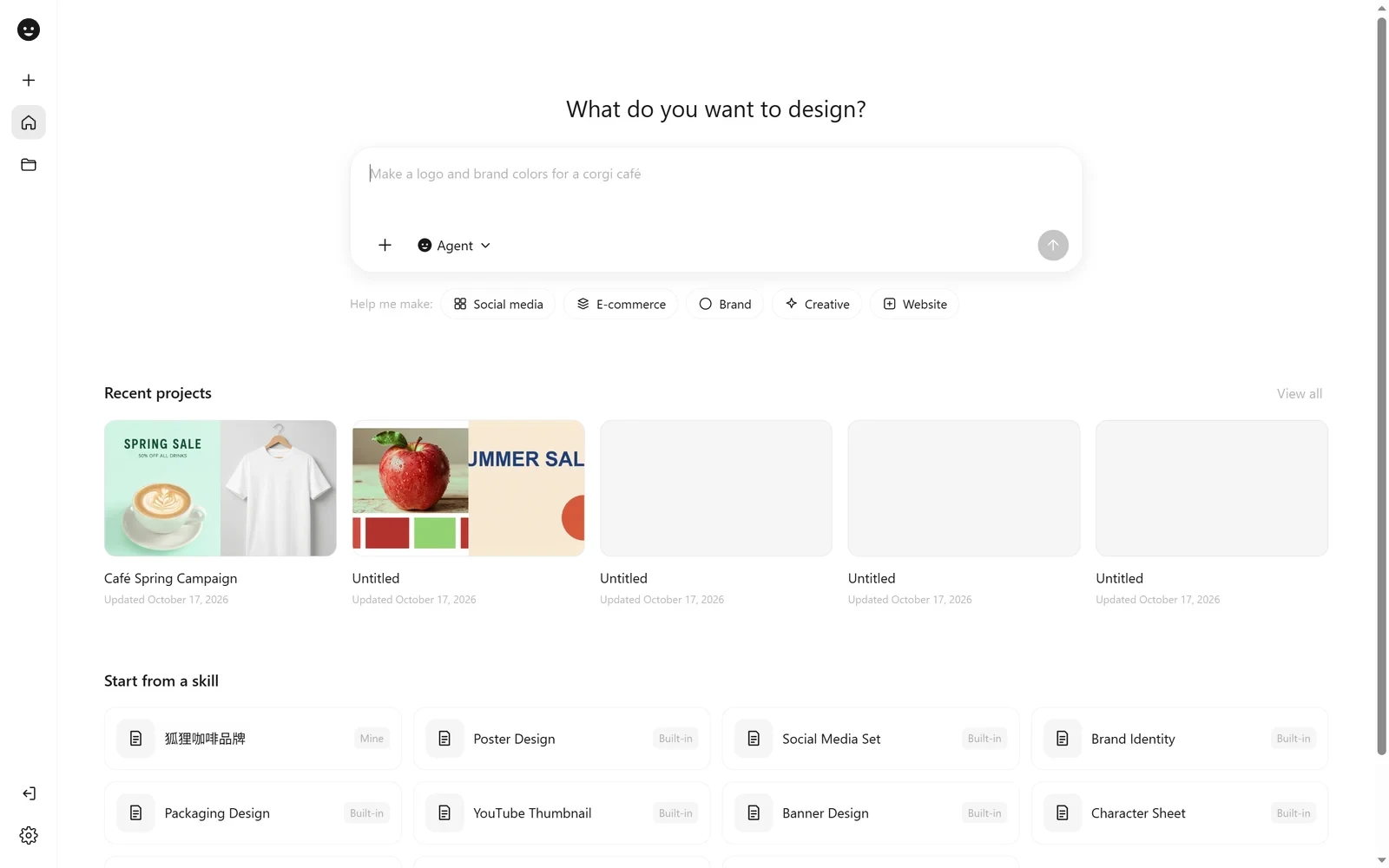
The home rail starts a project from one sentence or from a skill, and keeps every project in a local database.
One folder in custom_nodes
Installation is a clone into ComfyUI/custom_nodes/ plus pip install -r requirements.txt, which pulls pypdfium2 for PDF uploads and rapidocr for the Edit Elements OCR. The built front end lives in dist/, so no npm run build is needed to run it. After a restart the canvas is available in the browser and in Comfy Desktop.
Projects, their snapshot history and agent chats are written to a SQLite database at user/__comfyart/data.db. Projects created by older versions as JSON files under comfyart/projects/ are imported on first launch and left in place. Every canvas action is one of the API-format workflows in the repository's workflows/ folder, submitted through ComfyUI's /prompt.
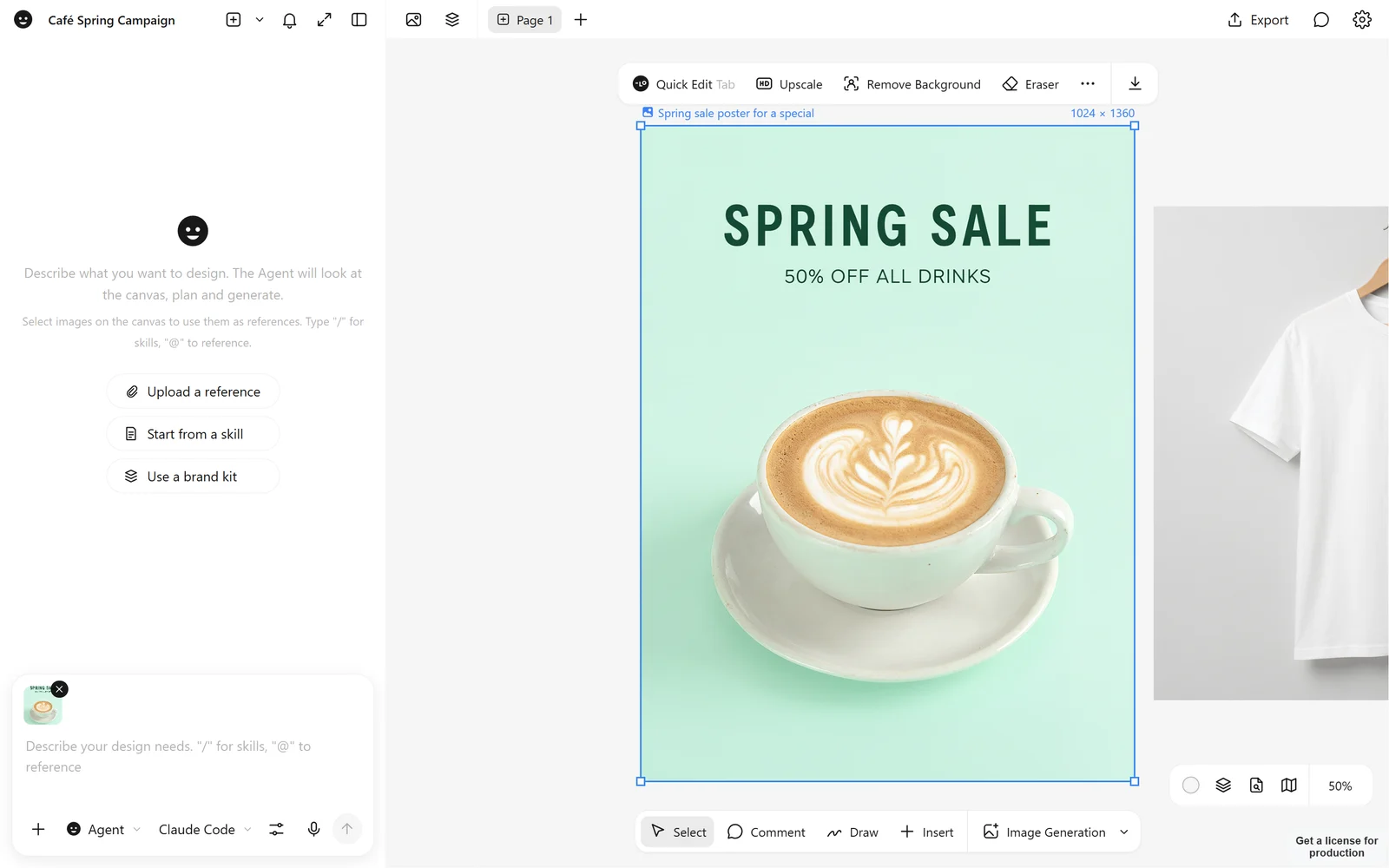
A page with an artboard, the layers panel and a generator card on the same canvas.
What the canvas does
The editor itself is a tldraw-based infinite canvas with pages, artboards and size presets, fill, stroke and corner radius controls, auto layout, a layers panel with drag, rename and range select, and snapshot history. Comments can be run as edits or handed to the agent together with the marked area. Finished work exports to PNG, JPG, PDF and editable PPTX.
Text and vectors are not an afterthought: mixed fonts, sizes and colours in one text box, a font picker that lists brand, common and local fonts, solid, linear, radial and image fills with transparent colour stops and blend modes, a pen tool with node editing, and boolean union, subtract, intersect and exclude.
The image side is a set of tools rather than a single prompt box: quick edit, upscale, background removal, eraser, crop with platform presets, flip and rotate, non-destructive adjust, inpaint, move object, multi-angle, expand, split layers, edit text, style transfer and vectorize. Generators are sized in real pixels and accept references through structure modes (MLSD, HED, normal, segmentation), colour palettes and base images.
Two tools are less common in this category. Edit Elements takes a flat poster back to an editable artboard by OCR-ing the text into layers, cutting out the product and logo, and rebuilding a clean background, after which the result can be re-rendered. Mockups prints a design onto a product photo and follows the folds and shading of the surface in real time, then either bakes the result or blends it with AI.
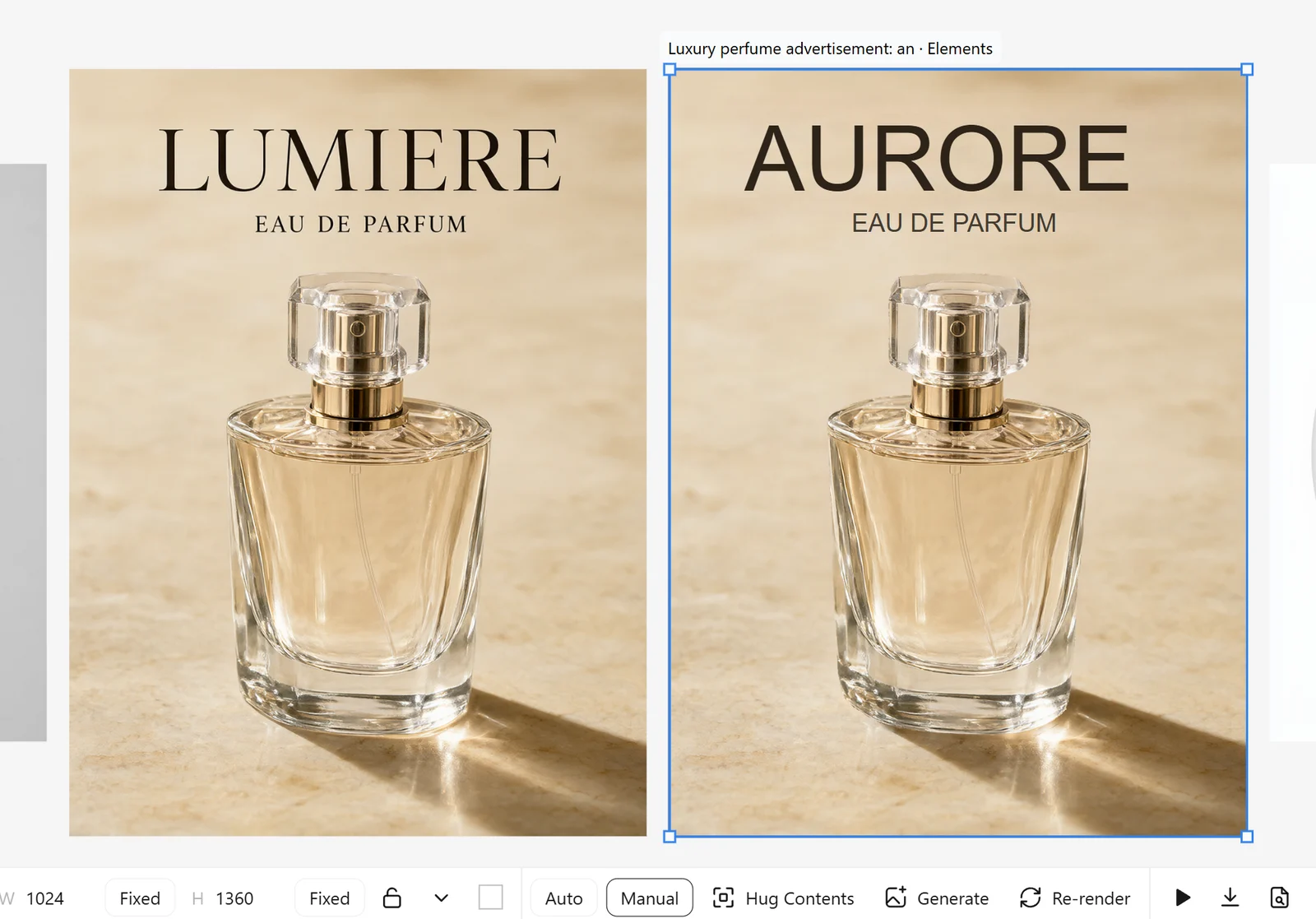
Edit Elements turns a finished poster into separate text, product and background layers.
Video, audio and 3D sit on the same canvas. Video runs from text, from a first and last frame, from up to 9 reference images, or from a storyboard, at 5 to 15 seconds and 768p or 1080p, with a timeline editor for assembling several clips with music. Music, voiceovers with voice cloning, and sound effects arrive as playable cards, and a picture can be turned into a textured 3D model.
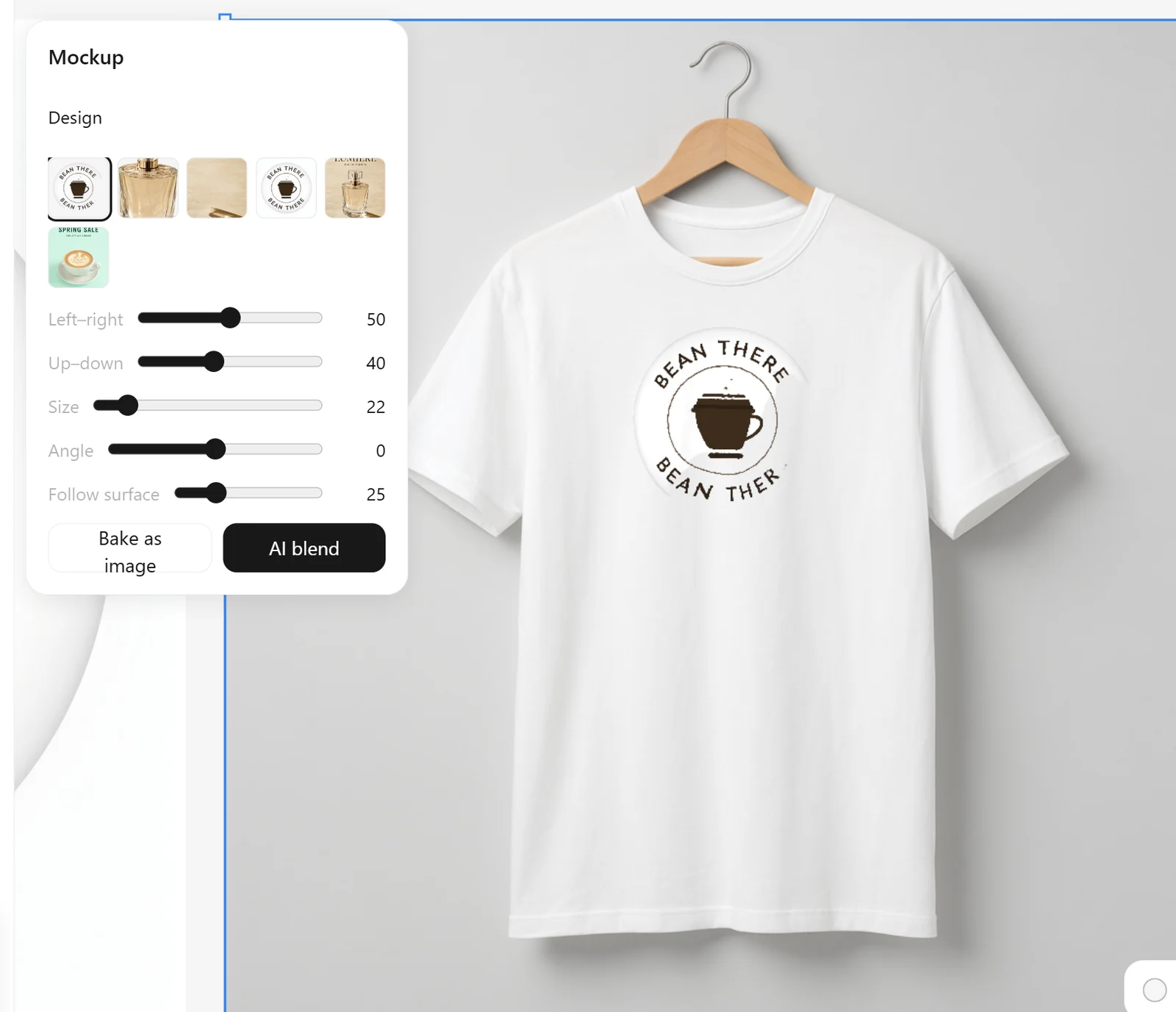
The mockup tool warps a design onto the product in the photo before baking it.
The workflows stay in ComfyUI's node vocabulary
Because each action is an API-format workflow, the models behind the canvas are the ones already on your disk. The repository lists them per action: qwen_image_2.1_int8_convrot with qwen3vl_8b_int8_convrot and the Qwen Image VAE for generation, quick edit, text editing and outpainting; Z-Image Turbo, FLUX.2 Klein 9B in nvfp4, FLUX 3 Klein, MOSS-Image SFT, Qwen Image 2512 and Ideogram 4 for other image models; minimax_h3_fl2va_pruned_int8_convrot with the 8-step turbo LoRA for animation and video; minimax_h3_ref2va_pruned_int8_convrot for reference-to-video; TRELLIS.2 and Pixal3D for image to 3D; MiniMax Music 3, ACE-Step 1.5, Stable Audio Open for audio.
Where a core node would break, ComfyArt ships its own. The ComfyArt Precise UNET Loader exists because ComfyUI's --fast fp8_matrix_mult turns unscaled fp8 checkpoints such as Qwen Image 2512 into noise, so the loader skips that path for the model it loads. A built-in Timeline Render node handles video assembly, and motion control combines the H3 control-union patch with SDPose and RT-DETR for a pose graph.
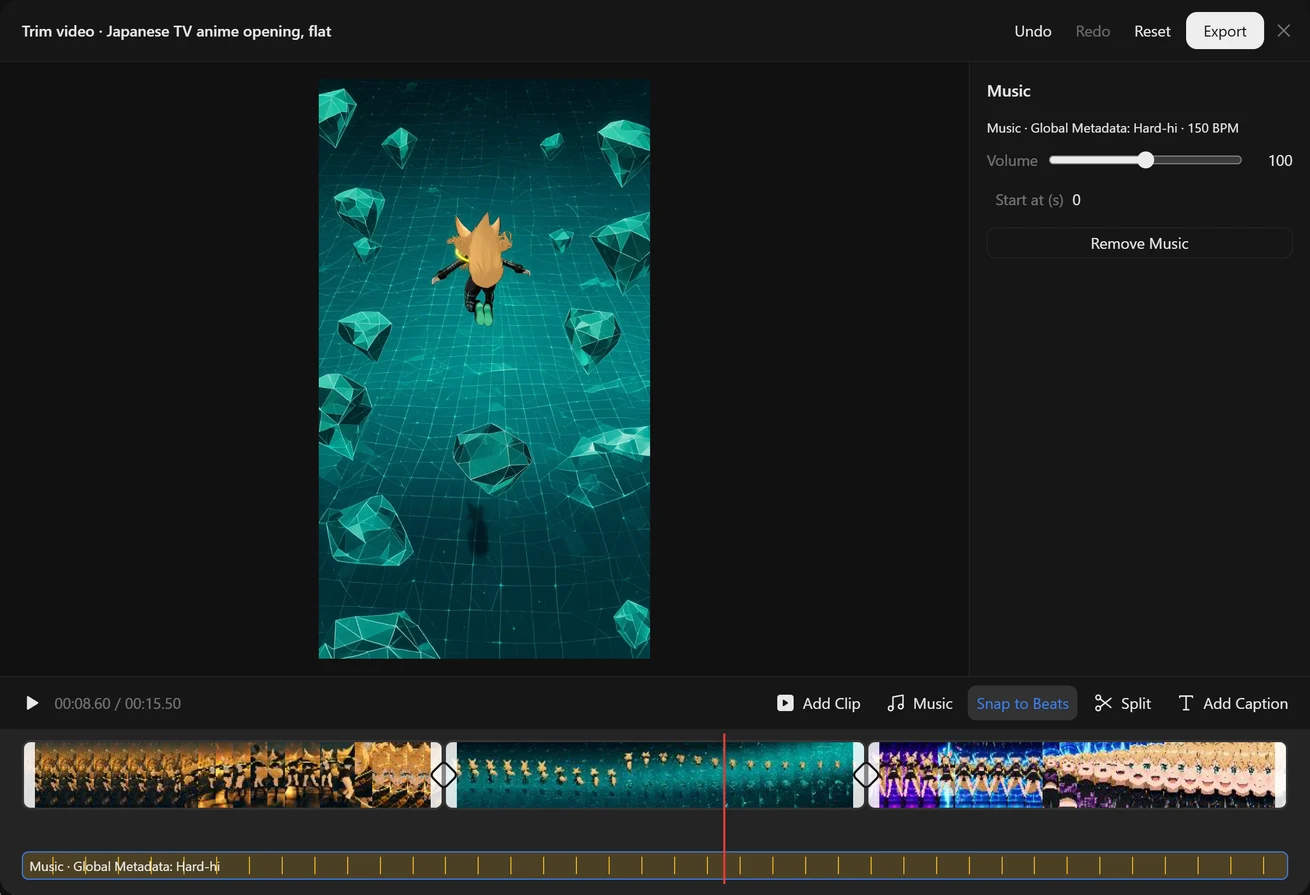
The video editor assembles several generated clips and a music track, then exports the result.
The agent works through tools, not a chat box
The design agent is off by default and enabled in Agent Settings. It is a tool-using backend ported from the author's ComfyTV bot and can be pointed at Claude Code, Codex, Qwen Code, DeepSeek Harness, or any OpenAI-compatible endpoint with tool calling. Through the bundled MCP server it can look at the canvas, generate and edit images, video, audio and 3D, place text, shapes, frames, web pages and slides, run Edit Elements and mockups, and keep project memory.
Canvas tools are executed by the open ComfyArt tab of that project, so the tab has to stay open while the agent works. Chats keep running when the panel is closed, and the same MCP endpoint can be attached to outside clients:
claude mcp add --transport http comfyart "http://127.0.0.1:8188/comfyart/mcp?project=<project-id>"
codex mcp add comfyart --url "http://127.0.0.1:8188/comfyart/mcp?project=<project-id>"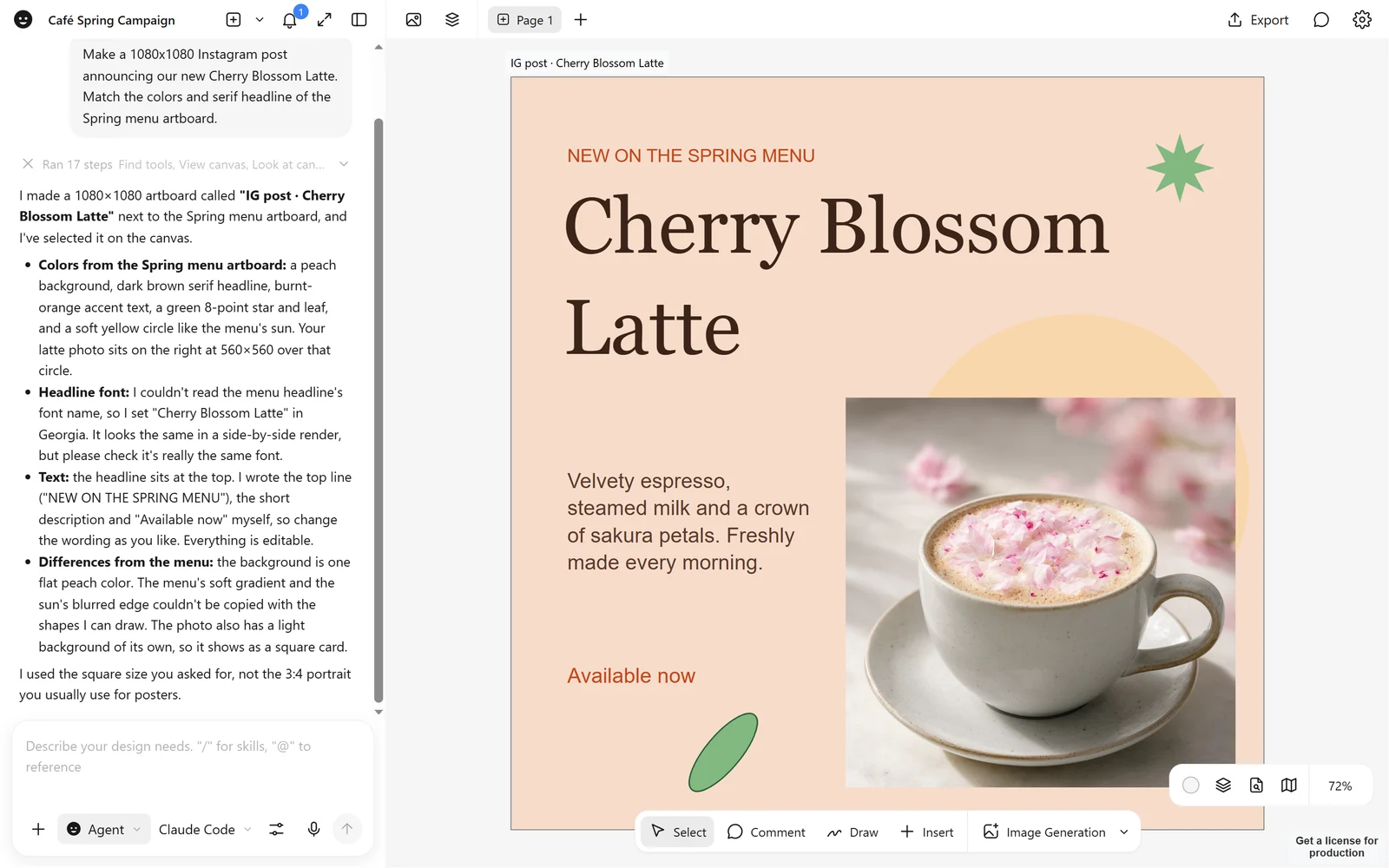
The agent lays out a finished post directly on the canvas instead of returning a single image.
Comfy Cloud and LAN machines as fallbacks
Two escape hatches exist for machines that cannot carry the models. Setting COMFY_API_KEY before starting ComfyUI and switching Settings → Generate on to Comfy Cloud sends the same workflows to https://cloud.comfy.org/api/v2/jobs, with inputs uploaded as Cloud assets and results landing in output/comfyart/ with a cloud-<job> suffix. On Cloud, voiceover and voice cloning route to Qwen3-TTS, and the Qwen Image 2512 loader needs ComfyArt installed on the machine that runs it.
For a small studio, Settings → LAN instances can register other ComfyUI machines started with --listen. Auto sends every job to the least busy machine that has all the nodes and model files for that workflow, skipping machines that are offline or missing a file, and each generator card can override the target under Run on. Model files are matched by name, so the same checkpoint can sit in different folders on each machine.
What version 1.1.0 added
The October 27 release is mostly about living inside ComfyUI rather than beside it: the ComfyArt button in the top bar for both the browser and Comfy Desktop, a Back to ComfyUI entry in the home rail and project menu that saves unsaved canvas changes first, a stop button on running generator cards, and an Unload models and clear cache action in the settings menu that frees VRAM and the execution cache once the current task finishes.
Getting started
- Clone the repository into
ComfyUI/custom_nodes/ComfyArt. - Install
requirements.txtinto ComfyUI's Python environment and restart ComfyUI. - Open the ComfyArt button in the top bar, or
http://127.0.0.1:8188/comfyart/.
The documentation at comfyart.org covers each tool with screenshots, and the MCP guide lists the full tool set for outside clients.
Comments
Sign in with GitHub to join the discussion.