MangaScreen: Turn Illustrations Into Screentone Manga Pages in ComfyUI
ComfyUI-MangaScreen adds Manga Finish, Manga Panel and Manga Levels nodes that print halftone screentone manga pages, with a Qwen-Image 2.1 Turbo and a lite workflow.
ComfyUI-MangaScreen is a small custom node pack that turns a finished illustration into a black-and-white manga page (GitHub). It was published on October 17 and is also listed in ComfyUI Manager as Manga Screen. Instead of dropping a halftone filter over the whole image, it separates the drawing into the layers a manga artist would use: crisp ink lines, a few flat values, and real screentone dots only where tone belongs.
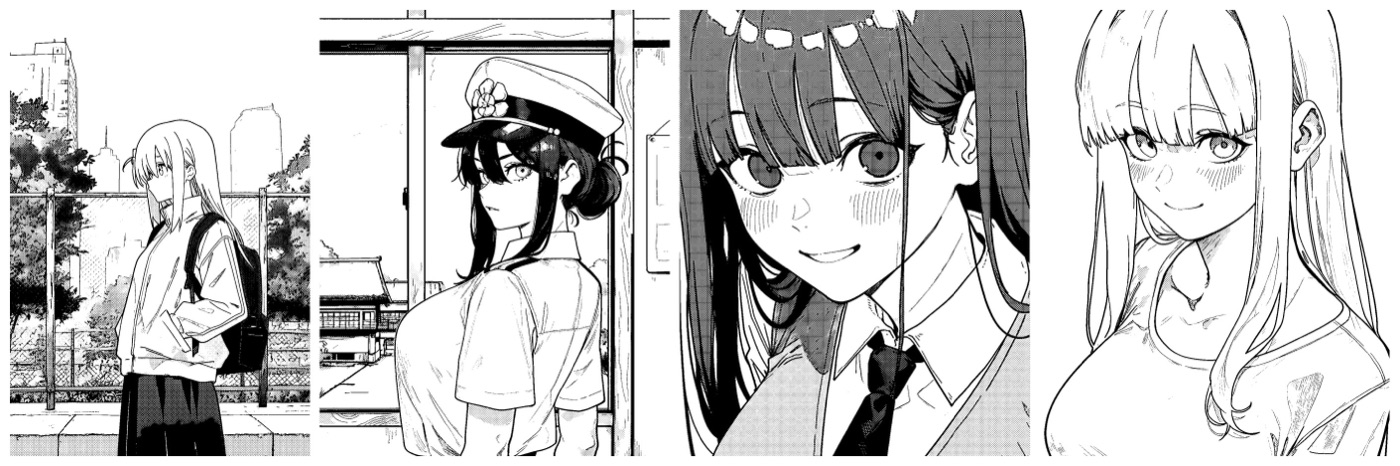
Manga Finish results. Source: ComfyUI-MangaScreen
The pack ships three nodes: Manga Finish (the converter), Manga Panel (crops the page into a framed panel with paper and ink feel), and Manga Levels (grayscale plus levels, for the path without an edit model). The node code is one Python file using numpy, OpenCV and torch, so nothing else has to be installed beyond opencv-python and numpy, which ComfyUI usually already has.
Why a plain halftone filter is not enough
A normal halftone filter converts every grey value in the picture into dots. Lines get muddy, skin and highlights fill with dots, and the result reads as a photo with a pattern rather than as a drawing. Manga Finish splits the image first, then prints it:
- Lines: strokes are separated by shape, so long thin structures count as line and compact blobs count as dots or noise. The lines stay crisp black on their own layer.
- Values: tone is read with the lines masked out, so no dark halo forms around them, and existing dots or soft grey are averaged away.
- Flat areas: values are pushed into four levels (paper white, light tone, dark tone, solid black), and small fragments merge into their neighbours.
- Gradation: a smooth shadow receives a gradation tone instead of visible steps.
- Print: one page-aligned 45° dot screen with binary black and white, which avoids moiré between adjacent tone areas.
- White lines in black: inside solid black, the main folds and seams are cut out thin and white, the way a dark coat is inked.
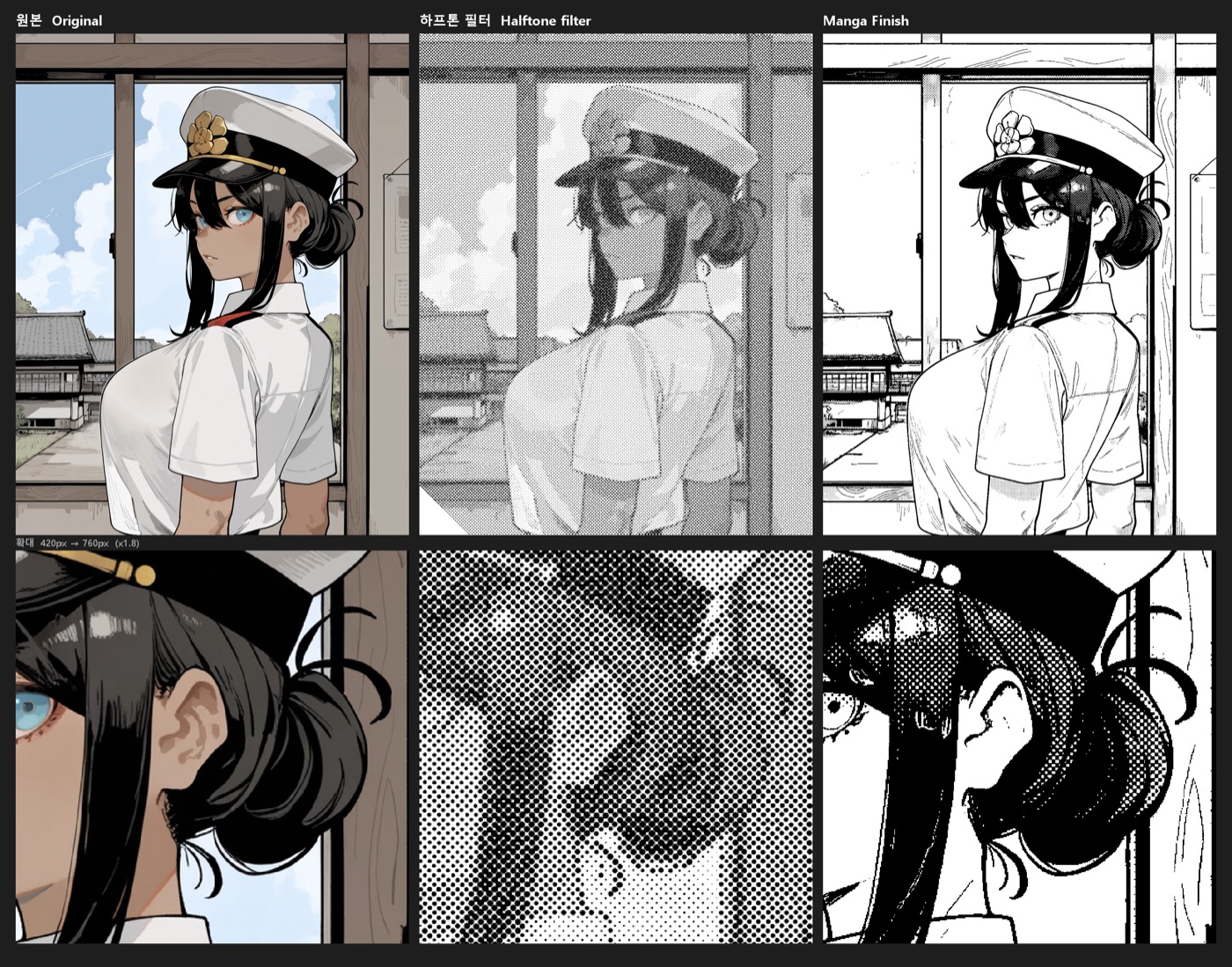
Original, a plain halftone filter, and Manga Finish on the same image. Source: ComfyUI-MangaScreen
A line map can be fed into the optional pen_lines input, for example Manga Lineart from comfyui_controlnet_aux, and pen_threshold controls how much of it is drawn on top of the finished page.
Two workflows: with and without an edit model
The full QWEN-Manga workflow uses a Qwen-Image 2.1 Turbo edit pass first, with the instruction to redraw the image as a black-and-white manga panel. The edit decides values by meaning rather than brightness, so skin and white cloth become paper while only genuinely dark things stay black, and then Manga Finish prints the page. No prompt or tags are needed beyond the edit instruction in the workflow.
The workflow needs a Qwen-Image 2.1 Turbo diffusion model, a Qwen-Image 2.1 text encoder and VAE, and comfyui_controlnet_aux for the Manga Lineart preprocessor, whose model downloads on first use. A Compare Images node shows the original and the result with a slider, and the working size is 2 MP. Below that, screen_lines should be lowered so each dot stays at least about 5 px wide.
The Manga-Lite workflow skips the edit model entirely and runs Manga Levels, the pen-line preprocessor, Manga Finish and Manga Panel in sequence, so it runs anywhere ComfyUI runs, including on CPU.
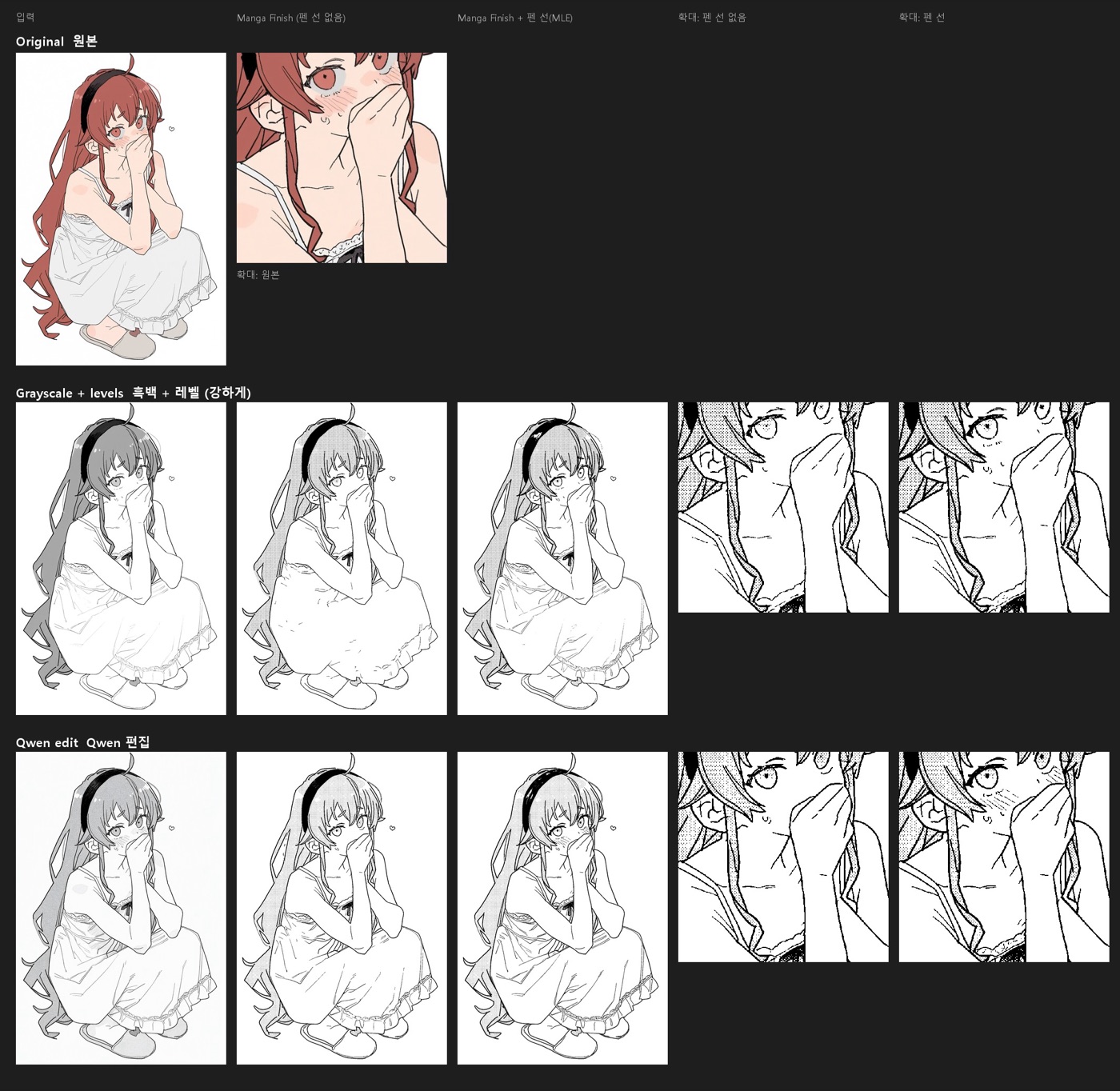
Manga-Lite and QWEN-Manga on the same character. Source: ComfyUI-MangaScreen
On clean line art with a simple background the lite path gets close to the full version. Qwen pulls ahead on painted backgrounds, which it redraws as lines, and on things brightness cannot tell apart, such as blush on skin or a red dress next to a red ribbon. The author recommends raising black_point to 0.5–0.6 when dark clothes should go solid black, because the edit pass tends to draw them dark grey.
Manga Finish inputs
| Input | Default | Effect |
|---|---|---|
screen_lines | 200 | Rows of dots across the width: 120 coarse, 200 normal, 300 fine. The same value looks the same at any resolution |
white_point | 0.80 | Brighter than this becomes paper. Lower it to clear more tone |
black_point | 0.30 | Darker than this becomes solid black. Raise it for more black |
light_tone / dark_tone | 0.18 / 0.42 | Dot coverage of the two flat tones |
gradation | 1.0 | Gradation tone for smooth shadows. 0 keeps flat areas only |
pen_lines | none | Optional line map drawn on top, e.g. Manga Lineart |
pen_threshold | 0.30 | Lower values draw more of the pen lines |
white_lines | 0.4 | How many lines are cut out white inside solid black. 0 turns it off |
Manga Panel then crops the page to a frame (original, 4:3 wide, 16:9 wide, 3:4 tall or 1:1) with adjustable crop position, border, margin, paper colour and an ink setting that softens edges and slightly uneven blacks.
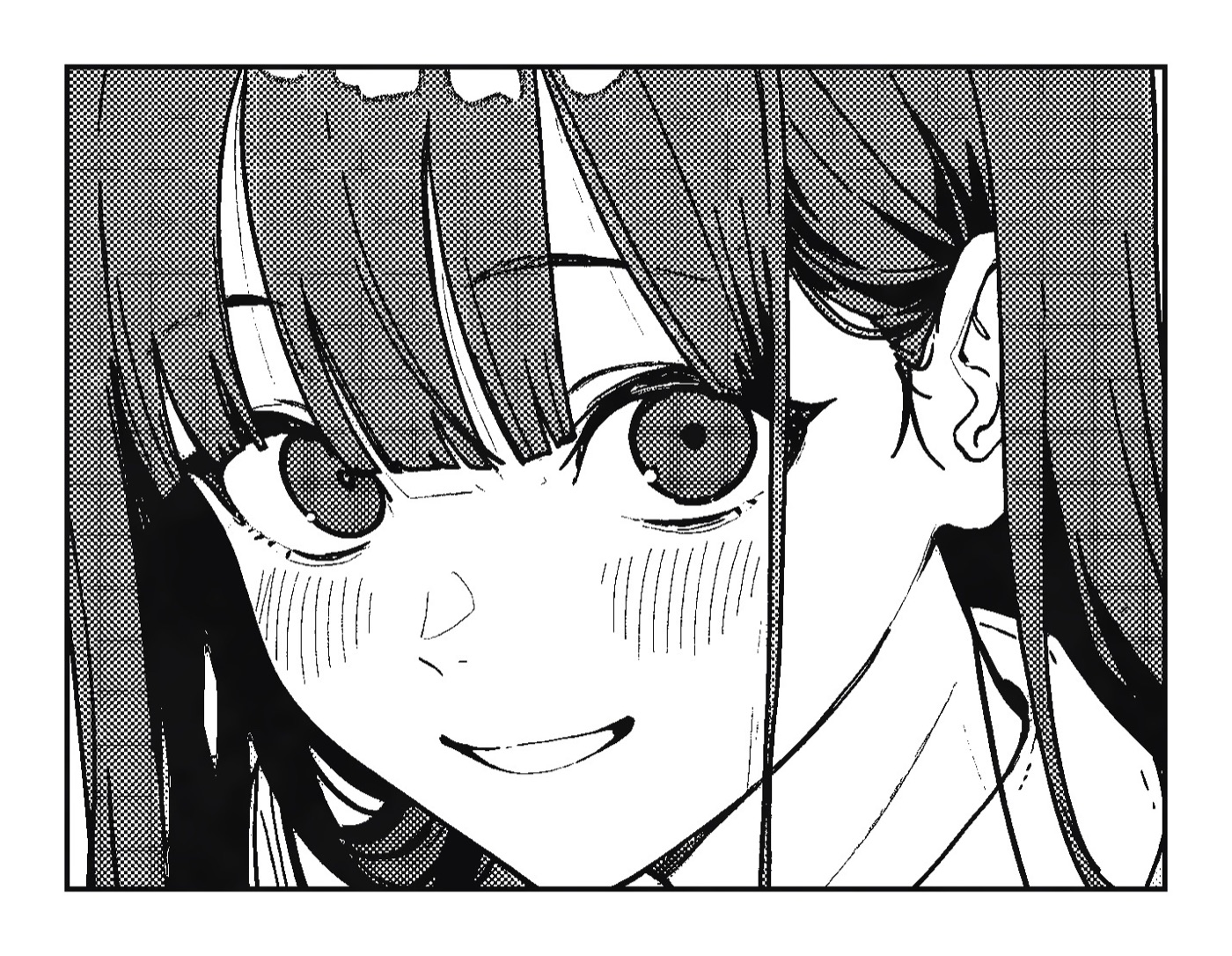
Pages finished with Manga Finish and framed by Manga Panel. Source: ComfyUI-MangaScreen
Install
cd ComfyUI/custom_nodes
git clone https://github.com/ashukae/ComfyUI-MangaScreen
Restart ComfyUI afterwards. The pack is also searchable in ComfyUI Manager under Manga Screen, and Manga Finish works on its own on any image, without either workflow.
Comments
Sign in with GitHub to join the discussion.